Create a member area with Squarespace Member Areas
Note: This blog post was written before Squarespace Courses existed. If you want to create an online course on your Squarespace website, check out this blog post. If you don’t want to create an online course but would like a restricted-access area on your website, Member Areas is a good choice.
With Member Areas, you can create a private space that people can access using their own login credentials. For example, you can use this feature to offer online courses through your own Squarespace website. The advantage is that you can design your courses to have the exact same look and feel as the rest of your website. Everything is all in one place. And you don’t have to learn how to use any other tool.
7.0 and 7.1
It doesn't matter which version your website was created with. The Member Areas feature is available in both Squarespace 7.0 and 7.1. However, the navigation options in 7.0 are slightly more limited.

Member Areas navigation options in 7.0 (accessible via Settings > Member Areas > Member Navigation)
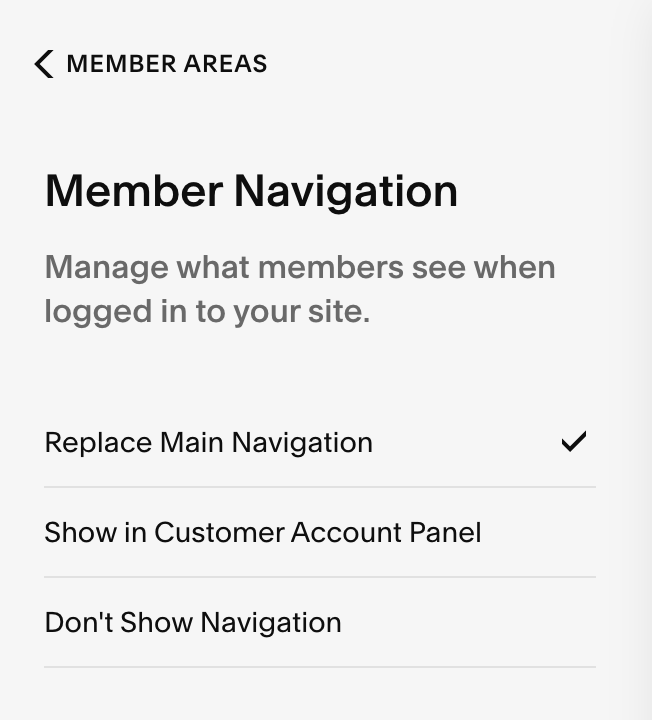
Member Areas navigation options in 7.1 (accessible via Settings > Member Areas > Member Navigation)
How do you set up your course?
You can use regular pages to set up your course, but you can also set it up using the blog feature. Please note that if you use a blog, it will appear as a single page in the navigation.
What kinds of courses can you offer?
You can offer free courses, courses with a one-time purchase price, or courses with a recurring payment—for example, if you offer courses that people pay for on a monthly or annual basis. It is not possible to let people pay for your course in installments.
The costs
*Prices are subject to change and may not be up to date.
If you want to start using Member Areas, there will be additional costs involved:
Starter - 9 euros per month
1 Member Area
unlimited number of members
7% transaction fees (!)
Core - 18 euros per month
3 Member Areas
unlimited number of members
4% transaction fees
Note: Depending on the price of your course and how many you sell, you might be better off choosing the Core plan instead of the Starter plan to reduce transaction fees.
Pro - 35 euros per month
10 Member Areas (this is the maximum for now)
unlimited number of members
1% transaction fees
Payments
Unfortunately, here comes the biggest disappointment… Payments can only be made by credit card and PayPal. Payments via iDeal and Bancontact are not possible. If you’re still very keen to work with Member Areas, you could set up payments using a different system, such as Plug&Pay or Paypro. Read this blog post to find out how to do that.
Integration with Squarespace Email Campaigns
If you’re already using Email Campaigns for your newsletter, members of a Member Area will appear as a separate list. This makes it easy to email these members separately. New members will automatically receive a confirmation email, even if you’re not using Email Campaigns. You cannot disable this feature. Unfortunately, automations are not yet available for Member Areas.
Important Considerations
Before you start using Member Areas, it’s important to consider the following points:
iDeal/Bancontact payments are not available (only credit card and PayPal). This can only be done via a workaround.
Integration with Mailchimp is not possible
You cannot add members manually (but you can remove them manually via a member's profile)
Course tracking is not available (in other words, users cannot view their own progress). This feature is available with SQS Courses.
You can upload videos directly to Squarespace, with a maximum total video length of 30 minutes. If you exceed that limit, your subscription fees will increase. It’s better to upload videos to Vimeo and then embed them on your website using a Video Block. Vimeo offers more comprehensive privacy settings than YouTube. However, Vimeo may also incur costs.
Documents are not password-protected (so, for example, add a password to your document yourself and mention it on your course page)
There is no built-in affiliate program
There are no built-in certificates
Where can you find Member Areas?
You can find Member Areas under Settings > Member Areas.
You'll also find many settings in the Commerce section.
Under Design > Access Denied Screen, you can customize the screen that people see when they are not members but have a direct link to your course.
How do you add the log-in option to your navigation system?
Version 7.0 (Brine):
Design > Site Styles > Header Layout > Customer Accounts link position (Figure 1)
Design > Site Styles > Header > Customer Accounts link (Figure 2)
Design > Site Styles > Mobile > Customer Accounts link (Figure 3)

Figure 1

Figure 2

Figure 3
Version 7.1:
Pages > Edit > Edit Site Header > Elements > Account Login






In this blog post, we'll give you a step-by-step guide on how to enable iDeal payments when you're using Squarespace Member Areas.