Adding a Cancel Button to Your Squarespace Website
Please note: This article is not legal advice and is intended for informational purposes only. Consult a lawyer for questions specific to your situation.
Starting June 19, 2026, it will be mandatory to have a clear "Cancel" button on your website so that consumers can easily cancel their purchase. This applies to anyone who sells products or services online to consumers.
In this article, you'll learn what the right of withdrawal entails, what changes on June 19, and how to set this up on your Squarespace website.
What is the right of withdrawal?
The right of withdrawal is nothing new. Consumers (i.e., not business buyers) have always had 14 days to cancel an online purchase without having to provide a reason. They are then refunded the purchase price, even for digital products or services such as an online course or coaching program.
Important: This applies only to B2C transactions. If you sell exclusively to businesses (B2B), you generally don’t need to take any action regarding this. But please note: if someone makes a purchase from you without providing business information, that person is legally considered a consumer.
Do you sell to both consumers and businesses? If so, you must make the cancellation option available to your consumer customers in any case.
What will change on June 19, 2026?
The rules governing the right of withdrawal remain the same. What is changing is how easy it should be for a customer to exercise that right. Canceling a purchase should be just as easy as making one.
In practice, the cancellation process wasn't always straightforward: a form accessible via a link buried somewhere in the terms and conditions, or an email address that you could only find after searching extensively on the website. That will no longer be allowed after June 19.
Specifically, as an entrepreneur, you need to have the following in order:
A clearly visible cancellation link or button on your website, placed where customers can find it quickly (such as the footer or contact page)
A form that asks only for the information needed to identify the purchase
An automatic confirmation email to the customer, including the exact date and time of the cancellation
Refund of the purchase price within 14 days
If you don't take care of this in time, the cooling-off period will automatically be extended to 12 months. In that case, customers will have one year to cancel their purchase.
What do you need to set up on your Squarespace website?
This depends on which payment system you use. Below are the steps to follow for each situation.
If you use Plug&Pay
Plug&Pay already has the cancellation option built in, so it takes very little time on your part.
A handy feature: Plug&Pay automatically checks the invoice details to determine whether the buyer is a consumer or a business (for example, by entering a company name and VAT number). For business purchases, the cancellation button does not appear in the customer portal, so you don’t have to keep track of that distinction yourself.
What you need to do:
Go to Settings > Customer Portal and click Activate
Copy the customer portal URL and place it in an easily accessible spot on your website, such as in the footer or on the contact page
The cancel button will then automatically become available in the customer portal for one-time products that are still within the 14-day period. You don't need to do anything else to set this up.
You can find the complete manual at: https://help.plugandpay.com/nl/articles/15457426-herroepingswet-dit-regelt-plug-pay
If you use Squarespace Payments or Stripe
Squarespace does not currently have a built-in cancellation feature. Unfortunately, you'll have to set this up yourself.
Below is a step-by-step guide on how to set this up using Zapier and Mailblue (Active Campaign).
→ Step 1: Create a cancellation page
Create a new page in the "Not Linked" section of your Squarespace website and hide it from search engines. Add a form (Form Block) to this page with the following fields: name, email address, and order or invoice number. You can also add an optional field for a reason, but this should not be a required field.
Connect the form to Zapier using the Form Block settings.
→ Step 2: Make the link visible on your website
Add the link to the cancellation page to the footer of your website, or to another easily accessible location, such as the contact page.
→ Step 3: Set up an automation, including a confirmation email, in Mailblue
In Mailblue, create the following:
A new list, for example: revoke
A new tag under Contacts > Tags, for example: revocation
Two new fields under Contacts > Fields in a custom group, for example: receipt date and invoice number
Next, create an automation by following these steps:
Start the automation with the trigger: "revocation" tag has been added
Wait 5 minutes
Send an email (include the "receipt date" and "invoice number" fields in the text using personalization labels)
Wait 5 minutes
Remove the "cancellation" tag again
Adding and then removing the tag ensures that someone who unsubscribes a second time using the same email address will receive another confirmation email.
→ Step 4: Set up the Zapier connection
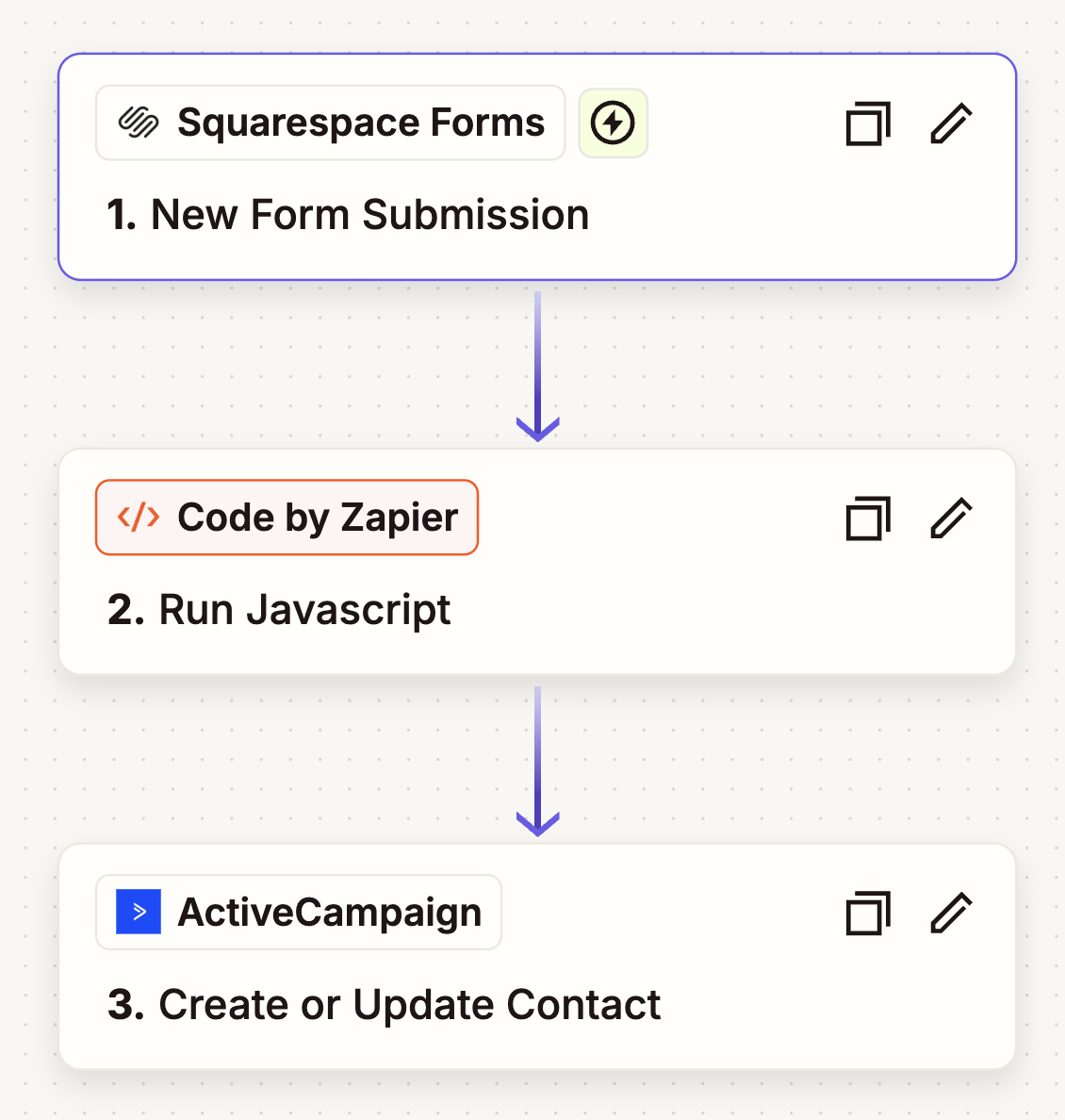
Create a Zap in Zapier with three steps: connect the Squarespace form (step 1) to Mailblue (ActiveCampaign) (step 3). Insert a “Run JavaScript” step (step 2) in between to generate the date and time, since your Squarespace form doesn’t do that.
In step 3, make sure to add the “cancellation” tag to the contact and fill in the “receipt date” and “invoice number” fields.
Tip: Use the AI Copilot in Zapier to set up this zap. It saves you a lot of research.
Here's what your zap will look like:
Step 5: Follow-up
After filling out the form, you will receive a notification in your inbox. Please process the cancellation within 14 days: refund the amount and send a credit invoice.
Please note: Anyone can fill out the form, including business buyers. However, the right of withdrawal applies only to consumers. So be sure to check carefully how someone paid (as a private individual or a business) before processing a withdrawal request.
Don't have Zapier or Mailblue yet? In the meantime,send the confirmation email manually as soon as someone fills out the form. This is a temporary solution: you won't be complying with the law this way. Set up an automated workflow as soon as possible.
Other matters to take care of
Update your Terms and Conditions. The cancellation policy must be included: what it is, where customers can find it, and how it works. Have a lawyer handle this.
Do you sell digital products that are available immediately after purchase? If so, you can have customers confirm at checkout—via an empty, required checkbox—that they are waiving their right of withdrawal. But keep in mind: such a checkbox appears right when someone is about to complete their purchase. That could cause hesitation.
Frequently Asked Questions
-
Yes. The right of withdrawal applies not only to physical or digital products, but also to services purchased online, such as a coaching program, a subscription, or a consulting service. If the contract is concluded remotely and the buyer is a consumer, you are required to offer the option to cancel.
-
Squarespace Email Campaigns can send an automated email after a form is submitted, but it falls short in one important regard: the law requires that the confirmation email include the exact date and time of the cancellation. Squarespace does not generate this “timestamp” and does not offer a way to add it to the confirmation email. Until Squarespace provides its own solution for this, using Zapier with Mailblue or a similar tool is a viable option.
-
The right of withdrawal applies only to consumers, not to business buyers. If someone fills out the form for a B2B purchase, you do not have to process that withdrawal. To verify this, check your records: did the buyer provide a VAT number or company name at checkout? If you use Plug&Pay, the system automatically makes this distinction, and the cancellation button isn’t even visible for business purchases.
-
Yes. There is no minimum threshold for the number of products or the amount of revenue. As soon as you sell something online to consumers and use an online payment process to do so, the requirement applies. Even a single product is enough to fall under the law.
-
Yes. The new law requires you to inform customers about the existence of the right of withdrawal prior to purchase: what it is, where they can find it, and how it works. If that information is not already included in your terms and conditions, they are no longer fully compliant.
Do not amend them yourself: terms and conditions are legal documents, and it is up to the lawyer who drafted them to make the necessary changes.
Don’t have Terms and Conditions yet? You can have them drafted by someone like Sharon from Area Gris.




Gebruik je Claude of ChatGPT voor code in je Squarespace website? Dit zijn de voor- en nadelen van het gebruiken van AI-code in Code Blocks en wat het betekent voor je SEO.