Heb je nog een Squarespace 7.0 website? Dan is het in 2026 wel tijd om na te denken over de overstap naar 7.1. In alle 7.0 websites zit tegenwoordig een knop om te upgraden. Je hoeft dus niet helemaal opnieuw te beginnen.
Squarespace noemt dit ‘upgraden’, maar eigenlijk zet je je website over naar een nieuwe versie. En dat gaat niet met één klik. Je moet je website daarna goed nalopen.
In deze blogpost lees je waarom het slim is om over te stappen. En hoe je dat het beste voorbereidt, zodat je ook je plek in Google behoudt.
Table of Contents:
Hoe weet je of je een 7.0 website hebt?
Weet je niet zeker welke versie je hebt? Dat check je in een paar seconden:
Log in op je Squarespace website.
Open in het linker menu Pages.
Scroll helemaal naar beneden.
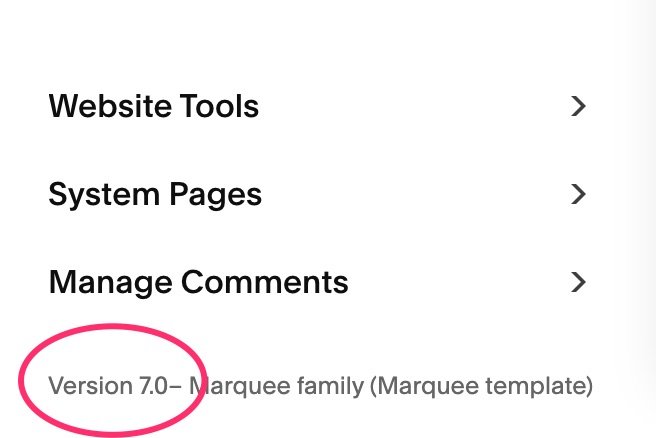
Hier zie je met welke versie jouw website is gemaakt.
Is je website gemaakt vóór 2020? Dan is de kans groot dat het een 7.0 website is.
Waarom upgraden naar Squarespace 7.1?
Squarespace 7.1 is niet nieuw meer. Sterker nog: versie 7.1 bestaat al sinds januari 2020. Een paar goede redenen om de upgrade serieus te overwegen:
7.1 is toekomstbestendig – Alle nieuwe functies komen alleen nog in deze versie.
7.1 is sneller – En dat is fijn voor je bezoekers en voor je SEO.
7.1 heeft Fluid Engine – Dit is de nieuwste editor. Je hebt daarmee veel meer controle over je design.
In 7.1 kun je de mobiele versie aanpassen – Dat was in 7.0 vaak frustrerend. Nu kan het eindelijk wél.
Kortom: wil je meegaan met de tijd, je website makkelijker kunnen aanpassen en goed gevonden worden? Dan is overstappen naar 7.1 een must.
Wat gaat er mee en wat niet?
Met de upgrade zet je je bestaande website om naar 7.1. Je teksten, afbeeldingen en domeinnaam gaan mee. Ook je SEO-instellingen, bestellingen, klantgegevens en redirects (URL mappings) blijven bewaard.
Maar niet alles gaat mee. Let vooral op deze punten:
Indexpagina's bestaan niet meer in 7.1. De subpagina's worden secties op één pagina, of een portfolio pagina. De losse links naar die subpagina's werken daarna niet meer. Ook hun SEO-titels en beschrijvingen ben je kwijt.
Albumpagina's verdwijnen. Sla je audio en teksten eerst op je computer op.
Cover pages worden gewone pagina's, zonder header en footer.
Een evenementenpagina met kalender wordt een lijst.
Sommige functies uit 7.0 bestaan niet in 7.1. Denk aan eigen Adobe fonts, een menu in de zijbalk, een tweede menu, parallax over de hele website en aparte stijlinstellingen voor mobiel.
Gebruik je Developer Mode? Zet dat eerst uit via Settings > Developer Tools. Aanpassingen die je daarmee hebt gemaakt, gaan verloren.
Upgraden of opnieuw bouwen?
De upgrade is handig, maar niet altijd de beste keuze. Je oude website komt namelijk één op één in 7.1 terecht. Met dezelfde structuur, dezelfde teksten en hetzelfde design.
Upgraden past goed als:
je blij bent met hoe je website eruitziet;
je website overzichtelijk is;
je weinig custom CSS gebruikt.
Opnieuw bouwen in 7.1 is slimmer als:
je design er verouderd uitziet;
je structuur in de loop der jaren rommelig is geworden;
je veel indexpagina's of custom CSS hebt;
je website meer dan 150 pagina's heeft.
Bij opnieuw bouwen start je met een nieuwe 7.1 website. Je zet je content zelf over en koppelt daarna je domein aan de nieuwe website. Let op: je SEO-instellingen en URL's gaan dan niet automatisch mee. Die moet je zelf overnemen.
Liever niet zelf doen?
Een website overzetten kost vaak meer tijd dan je denkt. Zeker als je een organisatie bent met veel pagina's, een team of meerdere locaties. Square It Up zet je website voor je over, of bouwt een nieuwe 7.1 website die past bij waar je nu staat.
Preparing for the upgrade
De upgrade naar 7.1 werkt via een preview modus. Zodra je die aanzet, zit je in een soort tussenfase. Je kunt dan niet makkelijk terug naar je 7.0 versie om instellingen te bekijken.
Doe daarom deze dingen voordat je op de preview button klikt
Maak screenshots van alle pagina's. De Chrome-extensie GoFullPage is hier handig voor. Zo weet je straks nog precies hoe elke pagina eruitzag.
Maak een duplicaat van je 7.0 site. Zo heb je altijd een backup achter de hand. Dit doe je via je dashboard.
Maak screenshots van je font-instellingen: H1, H2, H3 en body text.
Noteer alle kleurcodes (hex) van de kleuren die je gebruikt.
Maak screenshots van je button-instellingen (small, medium en large).
Maak een backup van je CSS. Die vind je via Design > Website Tools > Custom CSS. Kopieer de code naar bijvoorbeeld Notion of een Google Doc.
Check je indexpagina's. Hebben subpagina's belangrijke SEO-instellingen? Haal ze dan uit de indexpagina. Of noteer de URL's, zodat je bezoekers later kunt doorsturen. Hoe dat werkt, lees je bij "Zo behoud je je plek in Google".
Dit helpt je straks om 7.1 sneller in te stellen. Want er kan bij de upgrade het een en ander veranderen.
Let op: bestaat je 7.0 website uit meer dan 150 pagina's? Dan kun je helaas niet upgraden binnen Squarespace. Kijk of je het aantal pagina's kunt terugbrengen tot onder de 150. Vaak staan er in het Not Linked gedeelte oude pagina's die weg kunnen. Gebruik je veel indexpagina's? Dan telt elke subpagina als losse pagina. Misschien kun je subpagina's samenvoegen.
What happens in preview mode?
Je vindt de preview in het linker menu onder Design > Update to version 7.1.
Klik op de knop Get Started en daarna op Preview Site in 7.1.
Het laden van de preview kan een paar minuten duren. Daarna zie je bovenaan een blauwe balk. Je zit nu in de 7.1 preview.
Je bezoekers zien nu nog gewoon je oude website. Pas als je linksboven op Publish klikt, gaat je website echt over naar 7.1. Dat doe je nu dus nog niet. De blauwe balk onderaan kun je wegklikken.
Je gaat eerst in de preview modus aan de slag met de instellingen en de vormgeving. De code achter 7.1 is anders dan bij 7.0. Daardoor kunnen je pagina's er anders uitzien. Lettertypes, kleuren en marges kunnen veranderd zijn. En zoals je hierboven las: indexpagina's bestaan niet meer. Dat worden nu pagina's die zijn opgebouwd uit secties.
Lang verhaal kort: je loopt elke pagina van je website één voor één na en past hem aan waar nodig. Maar eerst begin je met de algemene instellingen.
Adjusting General Settings in Preview Mode
Colors
Maak een kleurenpalet met vijf kleuren. Squarespace maakt daar automatisch tien kleurthema's van. Die kun je daarna nog aanpassen.
Het kleurenpalet vind je hier: Site Styles (het kwast-icoontje rechtsboven) > Colors > Customize > Edit Palette.
Links zet je de lichtste kleur, rechts de donkerste. De middelste kleur is je accentkleur. Die wordt vaak gebruikt voor buttons.
Fonts
Stel de juiste lettertypes in voor onder andere je headings, je paragrafen en je buttons. Je lettertypes kunnen bij de upgrade namelijk veranderd zijn.
In 7.1 heb je vier soorten headings (H1 tot en met H4) en drie soorten paragrafen (P1 tot en met P3). Je body text uit 7.0 lijkt het meest op P2 in 7.1.
De instellingen voor de lettertypes vind je hier: Site Styles (het kwast-icoontje rechtsboven) > Fonts > Customize > Headings/Paragraphs.
Loop na het publiceren van je 7.1 site ook nog Miscellaneous en Assign Styles na in het Fonts-overzicht.
Buttons
Loop de instellingen van je buttons na. In 7.1 heb je nog steeds drie soorten buttons. Alleen heten ze nu anders:
Primary (was Medium)
Secondary (was Large)
Tertiary (was Small)
De instellingen voor de buttons vind je hier: Site Styles (het kwast-icoontje rechtsboven) > Buttons > Customize.
Spacing
De upgrade is een goed moment om de marges aan de linker- en rechterkant van je website opnieuw in te stellen. Gebruik het liefst deze instellingen:
max width: 1440px
spacing: 6vw
Je stelt dit in via Site Styles (het kwast-icoontje rechtsboven) > Miscellaneous > Spacing. Let op: de blokken op je pagina's kunnen hierdoor iets verschuiven.
Customize page layouts in preview mode
Na de algemene instellingen is het tijd om elke pagina na te lopen.
Choosing Between the Classic Editor and the Fluid Engine
Je nieuwe 7.1 pagina's bestaan uit één of meer secties. Hoeveel precies, hangt af van hoe je 7.0 website was opgebouwd.
Elke sectie blijft bij de upgrade eerst in de Classic Editor. Dat is dezelfde editor als in 7.0. Per sectie kun je kiezen of je wilt overstappen naar Fluid Engine. Let op: heb je een sectie omgezet, dan kun je niet meer terug.
In Fluid Engine kunnen blokken wat verspringen. En de mobiele weergave is vaak… een zooitje. Check die dus altijd goed! Klik daarvoor rechtsboven op het icoontje van een mobiele telefoon. In de mobiele versie kun je blokken makkelijk van plek wisselen en groter of kleiner maken.
Publish your 7.1 site
Ben je tevreden over hoe alles er (grofweg) uitziet? Klik dan linksboven in de blauwe balk op Publish. Let op: daarna kun je niet meer terug naar 7.0.
Check daarna nog één keer goed je hele website. Pas na het publiceren heb je weer toegang tot alle instellingen.
Vergeet vooral je mobiele versie en je custom CSS niet! Je CSS staat uit in de preview modus en moet je zelf weer aanzetten. Squarespace zet de code soms tussen commentaartekens. Haal die tekens weg in de CSS-editor. Sommige onderdelen hebben in 7.1 een andere naam, dus check of je code nog werkt. Verwijder code die je niet meer nodig hebt.
Wil je je website nog een keer helemaal checken? Gebruik dan de checklist met veelgemaakte Squarespace fouten.
Do you still want to go back to 7.0?
Dat kan, zolang je nog niet hebt gepubliceerd. Klik dan in de blauwe balk op Cancel in plaats van Publish. Er opent een pop-up. Klik daar op Cancel Update. Alles wat je in de preview hebt aangepast, ben je dan wel kwijt.
Zo behoud je je plek in Google
Ben je bang dat je na de upgrade minder goed gevonden wordt? Dat valt meestal mee. De URL's, SEO-titels en beschrijvingen van je gewone pagina's blijven bewaard. Je bestaande redirects gaan ook mee.
Het risico zit vooral bij indexpagina's. De subpagina's daarvan hebben geen eigen URL meer. Linkt Google of een andere website naar zo'n subpagina? Dan komt je bezoeker op een foutpagina (404) terecht.
Dit los je op met een redirect. Daarmee stuur je bezoekers en Google automatisch door van een oude URL naar een nieuwe. Zo stel je dat in:
Ga naar Settings > Developer Tools > URL Mappings.
Zet op elke regel de oude URL, een pijltje, de nieuwe URL en 301. Bijvoorbeeld: /team-anna -> /over-ons 301
Klik op Save.
Gebruik alleen het stuk na je domeinnaam. Dus wel /team-anna, niet https://jouwwebsite.nl/team-anna.
Nog een paar tips:
Bouw je een nieuwe website? Geef je pagina's dan dezelfde URL's als op je oude website. Lukt dat niet? Maak dan voor elke gewijzigde URL een redirect.
Werk je eigen links bij, bijvoorbeeld in je menu, buttons en blogs.
Gebruik je Google Search Console? Kijk daar in de weken na de upgrade of er foutmeldingen bij komen.
Tip: Practice with 7.1 beforehand
Wil je eerst even oefenen met 7.1 en Fluid Engine? Maak dan een nieuwe website aan in het dashboard van je Squarespace account. Je hebt dan twee weken gratis om een template te kiezen en te experimenteren met Fluid Engine. Bekijk ook alvast de Site Styles. Zo krijg je een idee hoe 7.1 werkt, voordat je met je eigen website aan de slag gaat.
Frequently Asked Questions
-
Open in het linker menu Pages en scroll naar beneden. Staat er "Version 7.1"? Dan zit je op 7.1. Zie je een templatenaam? Dan zit je op 7.0.
-
Nee, op dit moment (nog) niet. Squarespace ondersteunt 7.0 voorlopig nog. Maar je loopt wél nieuwe functies en snelheid mis. 7.1 is namelijk sneller. Niet spectaculair, maar genoeg om impact te hebben op je SEO.
-
Zolang je in de preview modus zit, kun je terug naar 7.0. Je aanpassingen in de preview ben je dan wel kwijt. Ze worden pas definitief als je op Publish klikt. En heb je eenmaal op Publish geklikt? Dan is er geen weg terug.
-
Je bezoekers zien gewoon je oude 7.0 website. Iedereen die toegang heeft tot de website, ziet wel de preview. Zolang de preview aanstaat, werk je in een tijdelijke 7.1 versie. Je 7.0 website kun je dan niet aanpassen. In de preview kun je alleen bestaande pagina's aanpassen.
-
Meestal niet. Je URL's en SEO-instellingen blijven bewaard. Let wel op subpagina's van indexpagina's. Hiervoor kan je het beste redirects instellen.
-
Je CSS blijft bewaard, maar wordt wel uitgezet. In de preview modus kun je niet bij je CSS-panel. Pas als je je 7.1 website hebt gepubliceerd, kun je de code weer aanzetten. Loop je code dan ook goed na. Sommige selectors hebben in 7.1 namelijk een andere naam.
-
Dan werkt de upgrade helaas niet. Kijk of je het aantal pagina's kunt terugbrengen tot onder de 150. Misschien staan er in het Not Linked gedeelte oude pagina's die weg kunnen. Lukt dat echt niet? Dan zit er niks anders op dan een nieuwe 7.1 website te maken. Met deze extensie kopieer je makkelijk pagina's van de ene naar de andere website. Dat is het beste alternatief.
-
Dan wordt je template niet ondersteund, of staat Developer Mode nog aan. Gebruik je een oud template dat Squarespace niet meer aanbiedt? Dan moet je eerst een ander template kiezen.
Need help?
Wil je je website niet zelf overzetten? Of twijfel je of upgraden of opnieuw bouwen beter is? Square It Up denkt graag met je mee. Plan een kennismakingsgesprek.





Heb je nog een Squarespace 7.0 website? Lees hoe je hem stap voor stap upgrade naar 7.1, wat er wel en niet meegaat en hoe je je plek in Google behoudt.